AFTER EFFECTS WORKFLOW
Create a 3D carousel in After Effects with Ultimate Tools
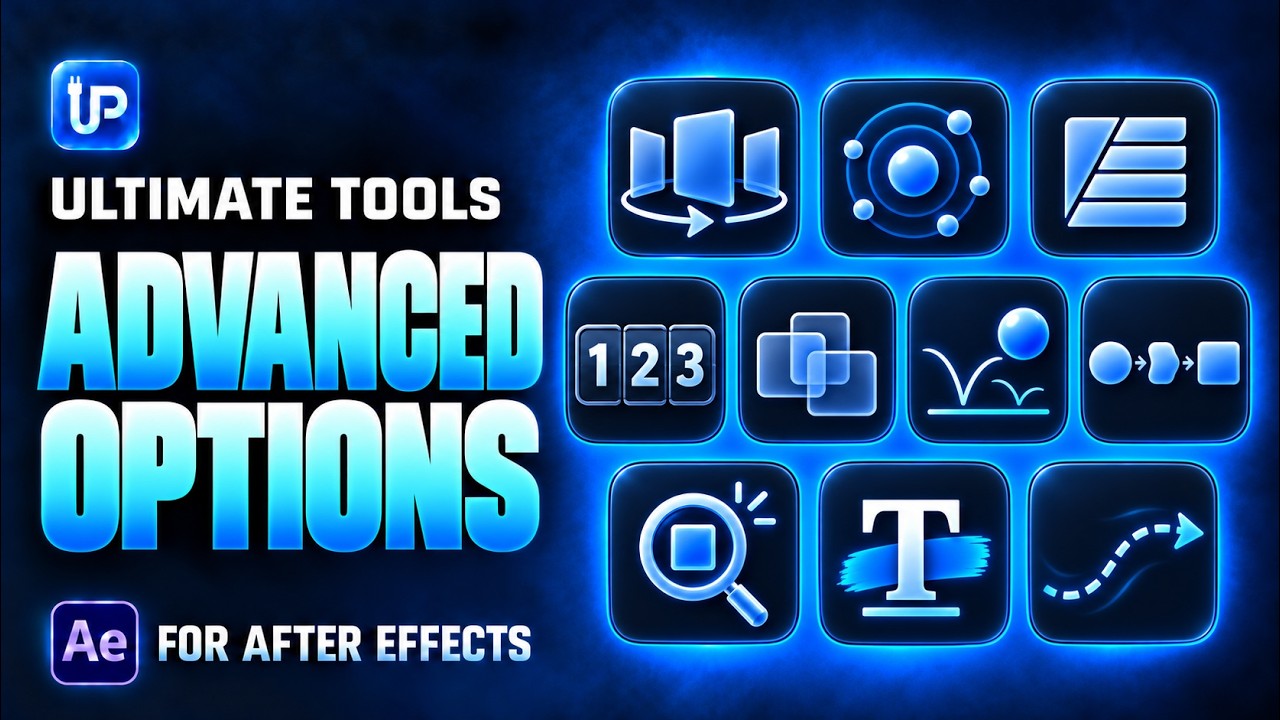
The 3D Carousel option in Ultimate Tools helps you build a carousel arrangement inside After Effects. It is part of Advanced Options, alongside tools such as Proximity, Morphing, Overlapping, Bounce and Number Counter.
Use a carousel when the layout is part of the story
A carousel is useful when several images or panels need to read as one arranged set. Before building it, decide which items belong together and which one should be the visual focus. Prepare the source artwork so inconsistent framing does not distract from the motion.
The walkthrough below starts at the 3D Carousel section of the Advanced Options tutorial. Follow the actual panel demonstration to see the available setup, then adapt the result to your composition. This is a workflow inside After Effects, rather than a rendered stock-video carousel.
Follow the demonstrated setup
- Prepare the images or layers for your carousel in your After Effects project.
- Open Advanced Options in Ultimate Tools and choose 3D Carousel.
- Follow the tutorial’s layer selection and setup, then adjust the available carousel controls for your layout.
- Review the result in the composition, checking framing, overlap and readability.
- Refine the motion and timing for your edit, then preview the sequence before rendering.
Separate layout choices from animation choices
First make the arrangement readable. Check the spacing between items and how the front item relates to those behind it. A crowded arrangement is hard to follow even when the motion is smooth.
Then review the movement at the speed your audience will see. Give the featured item enough time to read, and test transitions between items with the final artwork. Use After Effects for the finishing decisions that depend on your project’s style.
Find related controls in the same workspace
Advanced Options also includes Proximity, Shatter, Number Counter, Overlapping, Bounce, Morphing, Magnifier, Text Marks and Animated Dash. These are distinct tools; choose the one that matches the visual result you need rather than applying every effect to the same composition.
You can reach supported Ultimate Tools actions through Action Ring as well. The carousel is included with Ultimate Tools, not sold as a separate product on this page. Read the complete guide and product requirements before purchasing.